
Target Files
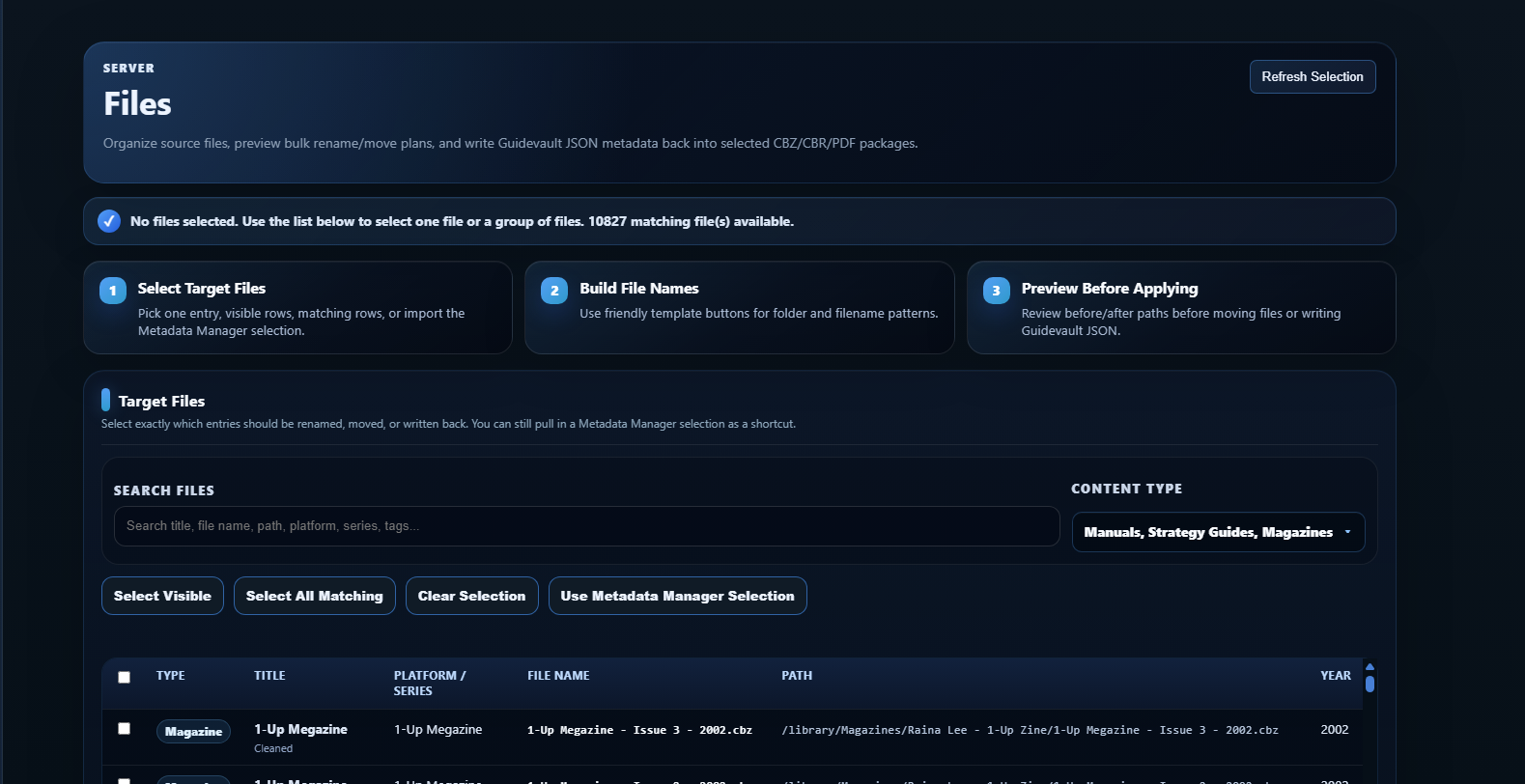
The Target Files section is the selection stage for bulk file actions in GuideVault. Before you rename files, move files, convert formats, or write metadata back into source packages, you first choose exactly which library entries should be affected.
What Target Files is for
Section titled “What Target Files is for”Target Files is designed to prevent accidental bulk changes. It separates the workflow into three steps:
Search, filter, and select the entries you want to work with.
Choose templates for how selected files should be named or organized.
Review proposed paths before anything is moved, renamed, converted, or written.
The selection table is the source of truth for the file operations lower on the page. If a file is not selected here, it should not be affected by the organize, conversion, or metadata write-back tools.
Search files
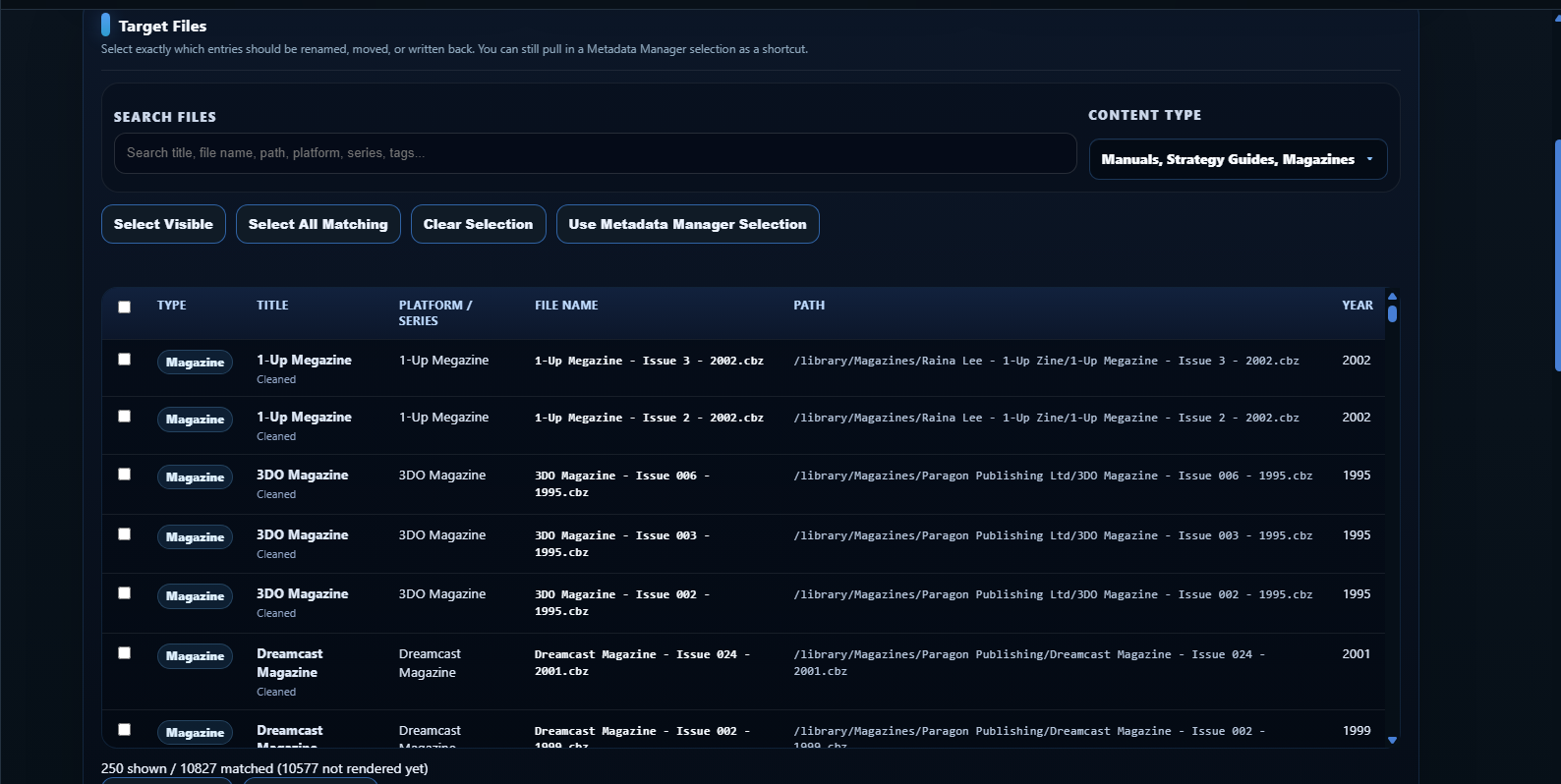
Section titled “Search files”Use the search box to narrow the list by visible metadata and file information. Search is useful when you want to work on a known title, platform, series, publication, folder path, or tag instead of browsing the full library.
Search can help find entries by information such as:
- item title
- file name
- file path
- platform or system
- magazine series
- publisher or publication
- tags or metadata fields that are indexed by the Files view
Filter by content type
Section titled “Filter by content type”The Content Type filter controls which kinds of library objects appear in the table. You can work with one content type or a mixed selection.
Common choices include:
Use this when you only want to organize or update game manuals.
Use this when you only want to work with guide books, walkthroughs, hint books, and official or unofficial strategy guides.
Use this when you are cleaning magazine issue naming, series folders, issue numbers, volume numbers, or cover dates.
A mixed filter is useful when a whole group should be handled together, but it is usually safer to organize files by type because manuals, strategy guides, and magazines often need different naming templates.
Selection buttons
Section titled “Selection buttons”The buttons above the table help build a target set quickly.
| Button | What it does | Best use |
|---|---|---|
| Select Visible | Selects the rows currently visible in the table. | Use after searching or filtering when you want only the visible page of results. |
| Select All Matching | Selects every item matching the current search and filter, not just what is rendered on screen. | Use for large batches after confirming the search/filter is precise. |
| Clear Selection | Removes the current selection. | Use before starting a different operation. |
| Use Metadata Manager Selection | Pulls in the selection already made in the Metadata Manager. | Use when you already curated a group of items elsewhere and want to run file tools on the same group. |
Selecting from Metadata Manager
Section titled “Selecting from Metadata Manager”The Use Metadata Manager Selection button is a shortcut for workflows where you already identified a group of items while cleaning metadata. Instead of searching for those same files again, you can bring that selection into the Files page and then:
- preview rename/move paths
- write GuideVault JSON metadata back to selected packages
- convert selected packages to another supported format
This is especially useful for curated cleanup batches, such as a magazine run, a publisher group, a specific platform, or a known problem set.
Reading the table
Section titled “Reading the table”The table shows the data that matters before a file operation happens:
- Type — whether the entry is a manual, strategy guide, magazine, or another supported type.
- Title — the GuideVault display title for the item.
- Platform / Series — platform for game-related material or series/publication for magazines.
- File Name — the current source package name.
- Path — where the source file currently exists under the library root.
- Year — the year metadata GuideVault has for that item.
Practical selection advice
Section titled “Practical selection advice”Start narrow. Use a content type filter and a search term before selecting many files. Then preview changes before applying them. The sharp edge with bulk file tooling is that a technically valid template can still create a bad library structure if the wrong files were selected.
A safe workflow is:
- Filter to one content type.
- Search for a specific platform, series, or publisher.
- Select visible or all matching rows.
- Preview the planned action.
- Apply only after the before/after paths look correct.