
Format Conversion
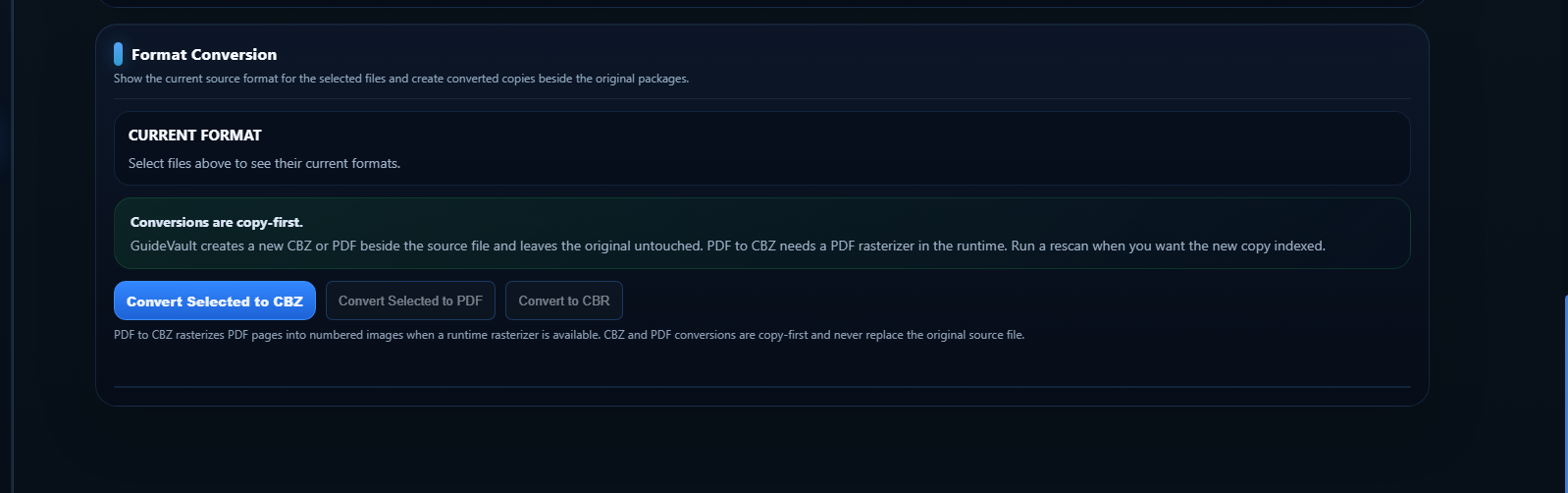
The Format Conversion section creates converted copies of selected files. It is useful when you want to normalize a group of documents into a more consistent package format, especially when converting PDFs or CBR files into CBZ.
Select files first
Section titled “Select files first”Format conversion uses the same selection model as the other Files tools. First choose a target set from Target Files, then run the conversion action.
You can select:
- one file
- a visible group of files
- all files matching a search/filter
- a metadata manager selection
- a mixture of manuals, strategy guides, and magazines
For large batches, filter by content type first. Converting a precise group is safer than converting an entire mixed library by accident.
Copy-first behavior
Section titled “Copy-first behavior”GuideVault conversions are intended to be copy-first. The converted file is created beside or near the original package, and the original source file is left untouched.
Confirm the converted files are correct before deciding what to do with the originals.
This matters because conversion can change packaging, page images, or file structure even when the visible content looks the same.
Convert selected to CBZ
Section titled “Convert selected to CBZ”CBZ is often the most practical target format for GuideVault because it is ZIP-based and easy to inspect, update, and write metadata into.
Converting to CBZ is useful when:
- you have a group of CBR files and want a ZIP-based package format
- you want better compatibility with metadata write-back
- you want packages that are easier to repair, inspect, or automate
- you want a common format for manuals, guides, and magazine scans
PDF to CBZ conversion rasterizes PDF pages into numbered images when a PDF rasterizer is available in the runtime. After conversion, run a rescan when you want GuideVault to index the newly created CBZ copy.
Convert selected to PDF
Section titled “Convert selected to PDF”PDF output is useful when you want a document-style file that can be opened easily outside GuideVault.
Depending on runtime support and source format, PDF conversion may be disabled until a valid source selection is made or until the required conversion tools are available.
Use PDF conversion when the target audience is more likely to open the document in a standard PDF reader than in a comic/archive reader.
Convert selected to CBR
Section titled “Convert selected to CBR”CBR output is useful for compatibility with some comic/archive readers, but it is generally less convenient than CBZ for metadata write-back because CBR is RAR-based.
Depending on runtime support, CBR conversion may not always be available. If the button is disabled, check the selected file types and the conversion tooling available in the GuideVault runtime.
Current Format panel
Section titled “Current Format panel”The Current Format panel shows the detected source format for the selected files. This lets you confirm what you selected before starting a conversion.
For example, if you intended to convert only PDFs but the panel shows mixed formats, return to Target Files and narrow the selection.
Common conversion patterns
Section titled “Common conversion patterns”| Source | Target | Why use it |
|---|---|---|
| CBZ | Make scanned pages easier to browse as image pages in the reader. | |
| CBR | CBZ | Normalize RAR-based archives into ZIP-based packages. |
| CBZ | Create a portable document-style copy for external use. | |
| Mixed formats | CBZ | Normalize a selected collection into one easier-to-manage format. |
Recommended workflow
Section titled “Recommended workflow”- Filter Target Files by content type or search term.
- Select the files you want to convert.
- Confirm the detected current formats.
- Run the conversion action.
- Rescan the library if you want the converted copies indexed.
- Verify converted files before removing or archiving originals.
The practical truth is that conversion is a library-normalization tool, not a replacement for backups. Keep originals until you have confirmed the converted output is complete and readable.