
Organizing and Renaming Files
The Organize Files container lets you build repeatable rename and move templates for selected files. It is meant for library cleanup: turning inconsistent source filenames into predictable folder and filename patterns based on GuideVault metadata.
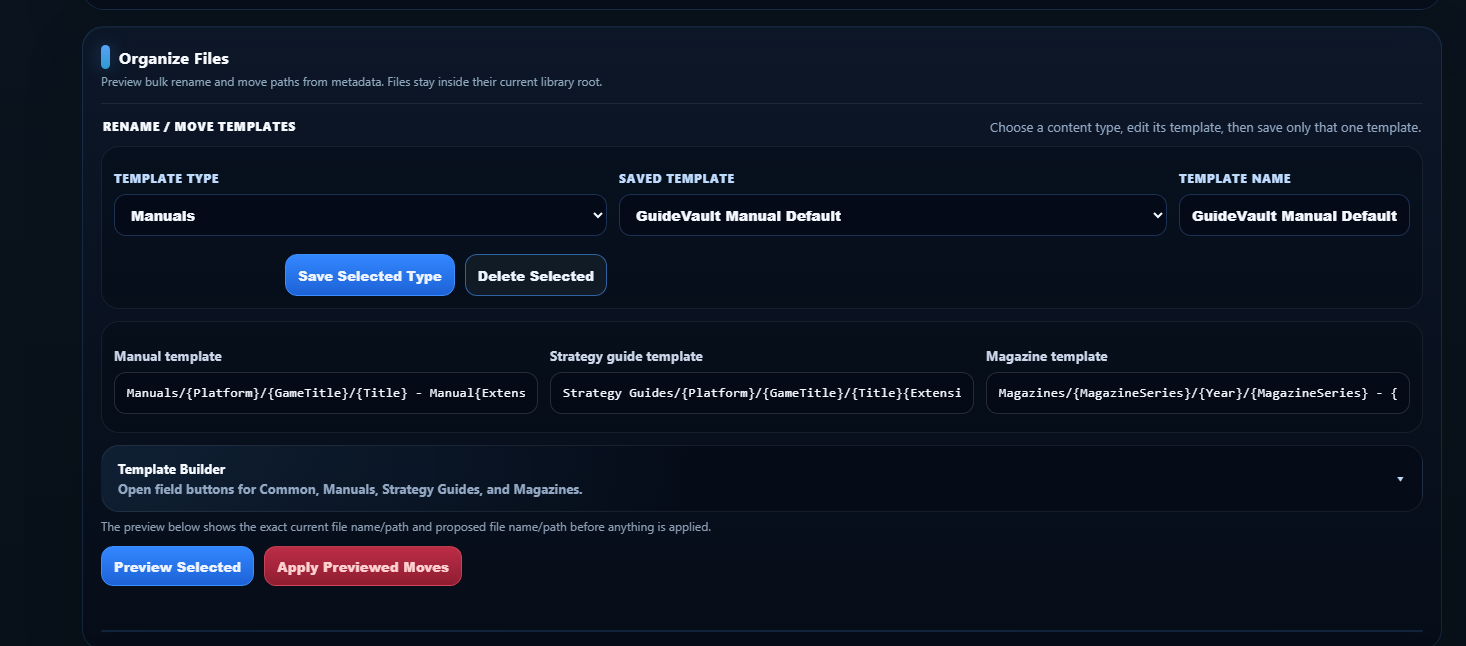
How the workflow works
Section titled “How the workflow works”Organizing files is a preview-first workflow:
- Choose files in Target Files.
- Choose a Template Type.
- Select or edit a saved template.
- Use the Template Builder to insert metadata tokens.
- Preview the proposed changes.
- Apply the previewed moves only after the output paths look correct.
GuideVault uses the selected item metadata to fill in the template. A template is not just a filename; it can include folder paths and file names.
Template Type
Section titled “Template Type”The Template Type controls which saved template set you are editing. Each content type can have its own naming logic.
Usually organized by platform, game title, and manual title.
Usually organized by platform, covered game, guide title, edition, guide type, or ISBN.
Usually organized by magazine series, year, issue number, volume number, and cover date.
Do not use one universal template for everything unless your library is extremely simple. Manuals, strategy guides, and magazines have different metadata shapes, and forcing them into one pattern usually creates messy paths.
Saved Template and Template Name
Section titled “Saved Template and Template Name”A Saved Template is a reusable pattern. The Template Name is the human-readable name for that pattern.
Use saved templates for patterns such as:
GuideVault Manual DefaultMagazine by Series and YearStrategy Guides by Platform and GamePublisher / Series / Title
After editing a template, use Save Selected Type to save the template for the currently selected content type.
Example template patterns
Section titled “Example template patterns”These examples show the idea. Your exact fields can be adjusted with the template builder.
| Content type | Example pattern | Result style |
|---|---|---|
| Manual | Manuals/{Platform}/{GameTitle}/{Title} - Manual{Extension} |
Groups manuals by platform and game title. |
| Strategy Guide | Strategy Guides/{Platform}/{GameTitle}/{Title}{Extension} |
Groups guides near the game they cover. |
| Magazine | Magazines/{MagazineSeries}/{Year}/{MagazineSeries} - Issue {IssueNumber} - {Year}{Extension} |
Groups magazine issues by series and year. |
Template Builder
Section titled “Template Builder”The Template Builder gives you clickable tokens so you do not have to memorize field names or type them by hand.
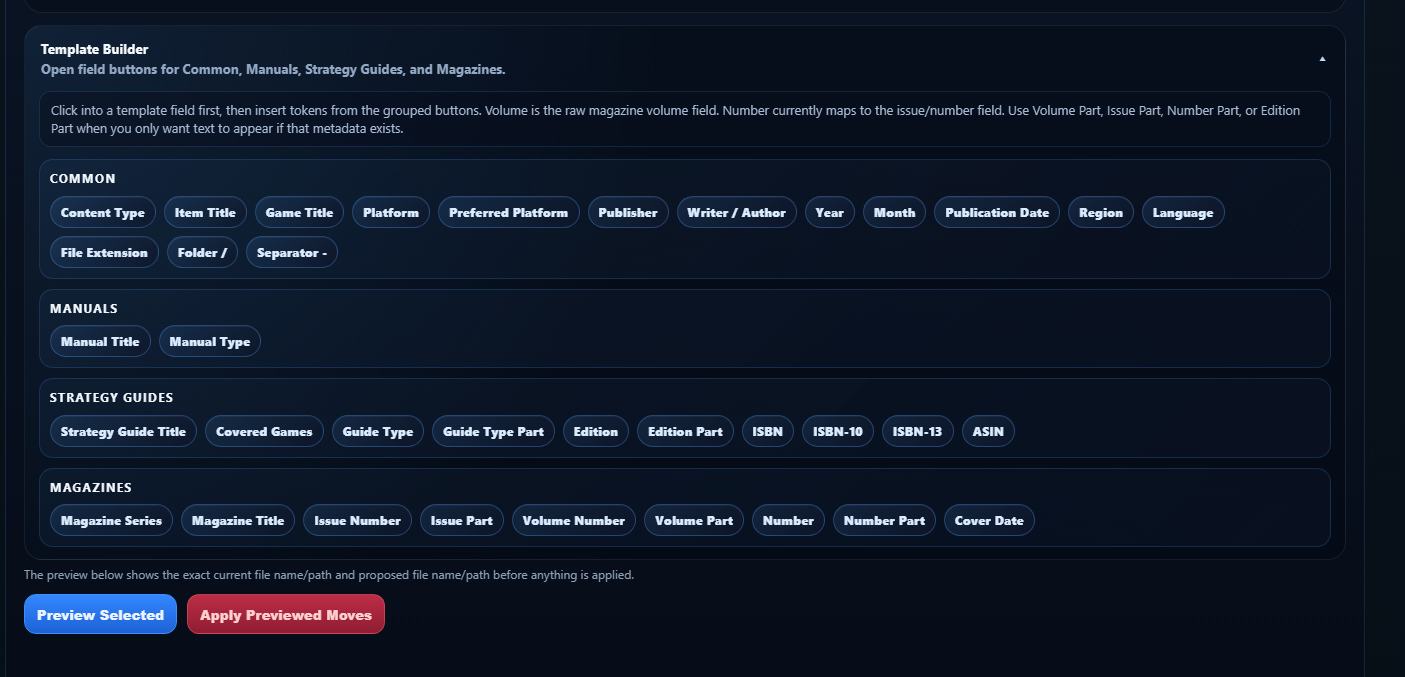
Click into a template field first, then use the grouped buttons to insert tokens.
Common fields
Section titled “Common fields”Common fields work across multiple content types.
| Field | Meaning |
|---|---|
| Content Type | Manual, strategy guide, magazine, or another object type. |
| Item Title | The main GuideVault title for the object. |
| Game Title | The game title associated with the object, when applicable. |
| Platform / Preferred Platform | The system or platform used for organization and matching. |
| Publisher | Publisher metadata. |
| Writer / Author | Author or writer metadata. |
| Year / Month / Publication Date | Date metadata used for sorting and naming. |
| Region / Language | Regional or language metadata. |
| File Extension | Preserves the current package extension such as .cbz, .cbr, or .pdf. |
| Folder / | Inserts a folder separator. |
| Separator - | Inserts a readable dash separator. |
Manual fields
Section titled “Manual fields”Manual fields are specific to game manuals.
| Field | Meaning |
|---|---|
| Manual Title | The manual-specific title. |
| Manual Type | Type or classification of the manual. |
Strategy guide fields
Section titled “Strategy guide fields”Strategy guide fields support guide-specific organization.
| Field | Meaning |
|---|---|
| Strategy Guide Title | The title of the guide. |
| Covered Games | Game or games covered by the guide. |
| Guide Type | Official, unofficial, walkthrough, hint book, collector guide, or another guide category. |
| Guide Type Part | Conditional part of the guide type, useful when you only want text if the field exists. |
| Edition / Edition Part | Edition metadata such as collector edition, revised edition, or official edition. |
| ISBN / ISBN-10 / ISBN-13 / ASIN | Book identifiers that can be useful for exact matching or archival naming. |
Magazine fields
Section titled “Magazine fields”Magazine fields are built for issue-level naming.
| Field | Meaning |
|---|---|
| Magazine Series | The publication name, such as Nintendo Power or GamePro. |
| Magazine Title | Issue title, when available. |
| Issue Number / Issue Part | Issue number and optional conditional issue text. |
| Volume Number / Volume Part | Raw volume metadata and conditional volume text. |
| Number / Number Part | Number field that currently maps to issue/number metadata. |
| Cover Date | Cover date shown on the magazine issue. |
Preview before applying
Section titled “Preview before applying”The preview step is the safety net. It shows the current file name/path and the proposed file name/path before anything is changed.
Do not skip preview. It is the easiest way to catch problems such as:
- missing metadata creating incomplete names
- a template using the wrong title field
- multiple files producing the same output path
- a magazine template being used against manuals
- unexpected folder nesting
Apply Previewed Moves
Section titled “Apply Previewed Moves”Apply Previewed Moves performs the changes that were shown in the preview. Files stay inside the configured library root. The point is to clean up your library structure without manually moving files around outside GuideVault.
Use this carefully. GuideVault can help build consistent paths, but the quality of the output depends on the metadata available for the selected files and the template you choose.